Driver updates are free performance — sometimes 5–15% in specific new releases — and the cause of half the mysterious crashes we get asked about. Both things are true because most people install them wrong. Here’s the right way for all three GPU brands, plus when an update is actually worth installing.
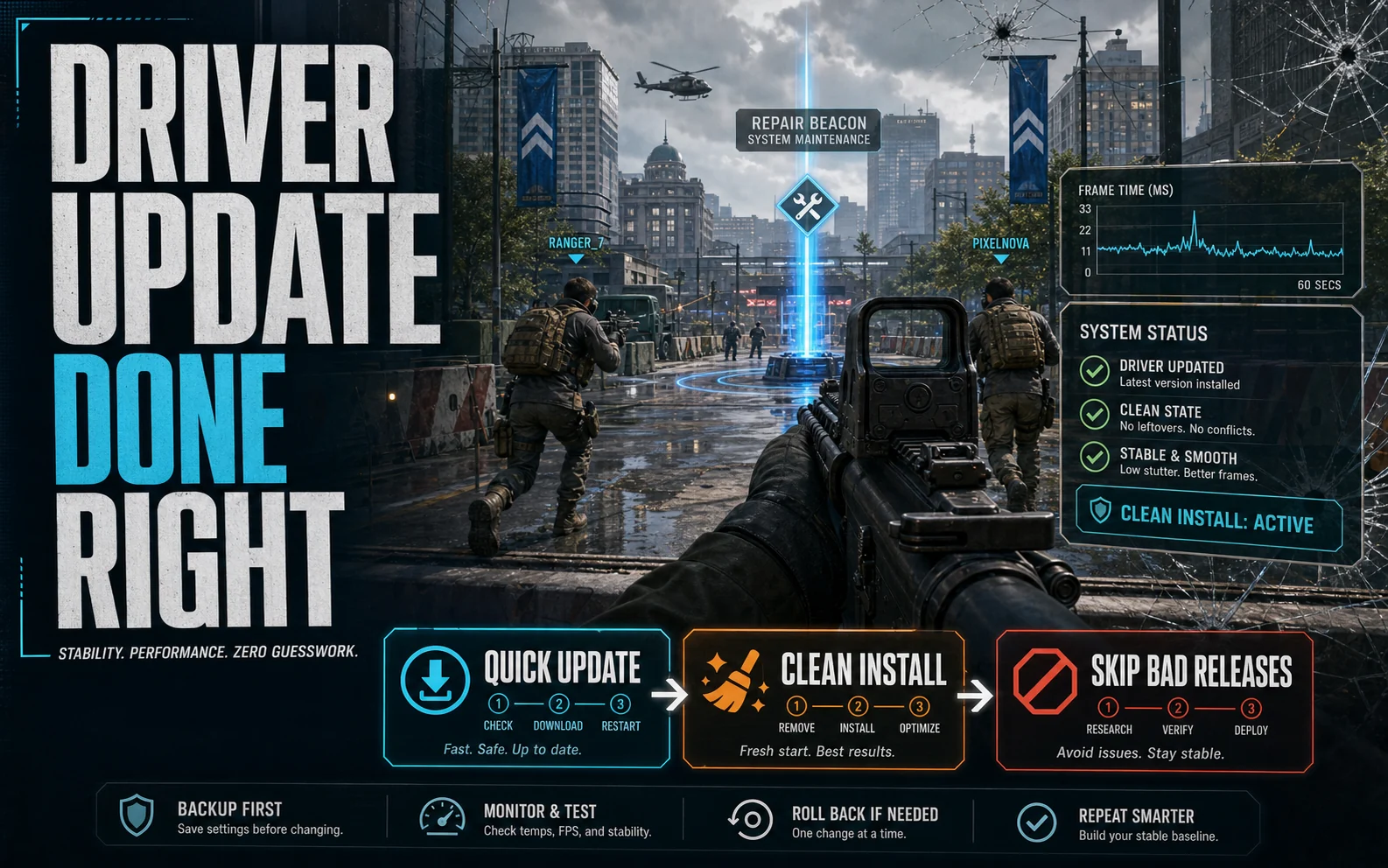
The quick way (fine most of the time)
Nvidia: the Nvidia App (which replaced GeForce Experience) → Drivers → Download. Choose the Game Ready driver; the Studio branch trades game-day fixes for stability creators care about.
AMD: AMD Software: Adrenalin Edition → Drivers & Software → Check for Updates. Stick to Recommended (WHQL) releases unless a specific game’s fix lives in an Optional one.
Intel Arc: Intel Graphics Software → Drivers. Arc drivers have improved enormously since launch — as we noted in our Arc B580 review, staying current matters more on Arc than on either competitor.
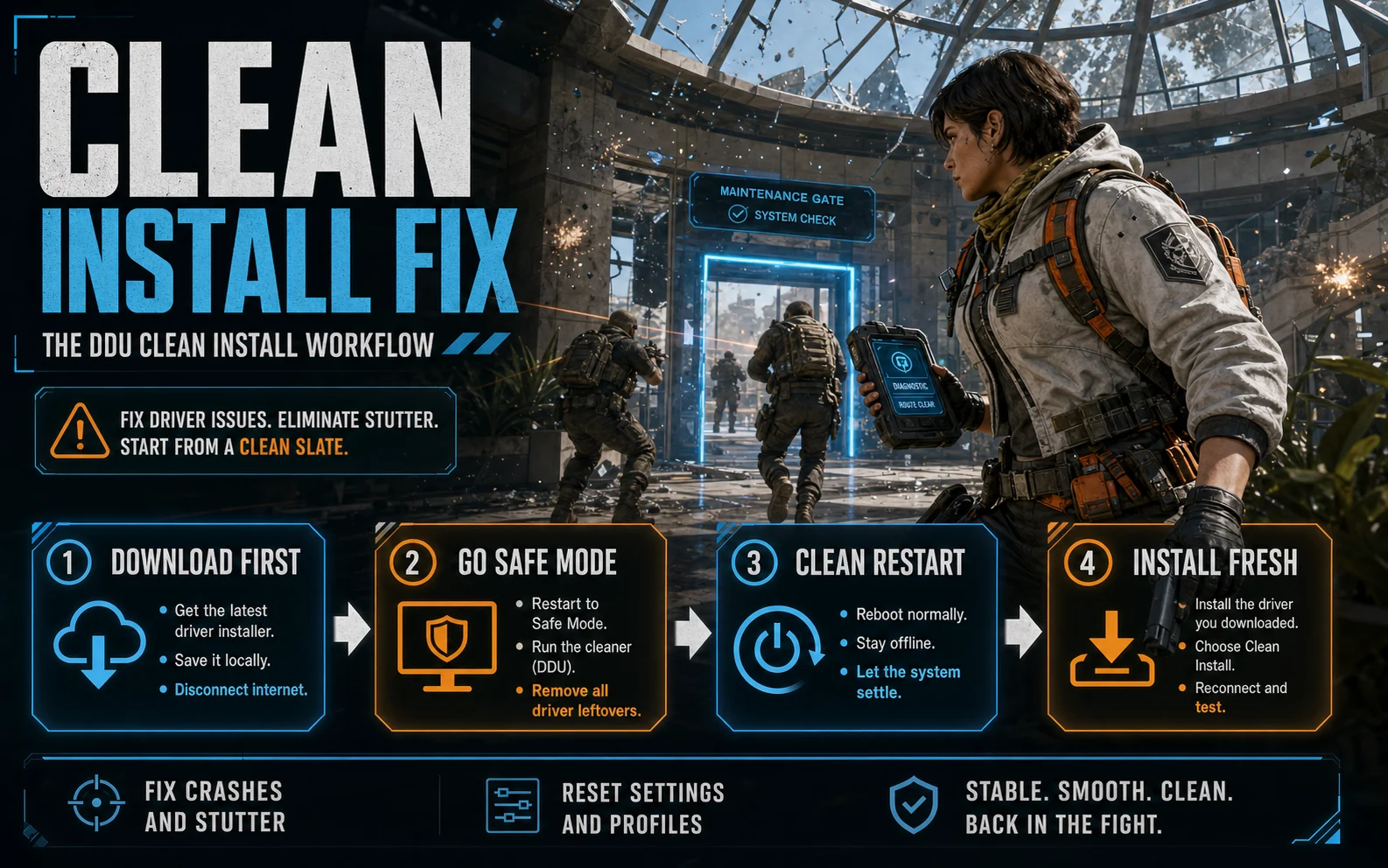
The clean install (do this when anything’s weird)
Crashes, stutter that appeared out of nowhere, flickering, performance that dropped after an update — these are usually driver residue, not hardware. The fix is Display Driver Uninstaller (DDU), free and the de-facto standard:
1. Download DDU and your new driver installer first. 2. Disconnect from the internet (stops Windows auto-installing a generic driver mid-process). 3. Boot into Safe Mode. 4. Run DDU → “Clean and restart.” 5. Install your downloaded driver normally. 6. Reconnect.
Ten minutes, and it resolves an outsized share of “is my GPU dying?” panics — worth trying before you shop for a replacement. It’s also step zero before testing a used GPU and before any overclocking session.
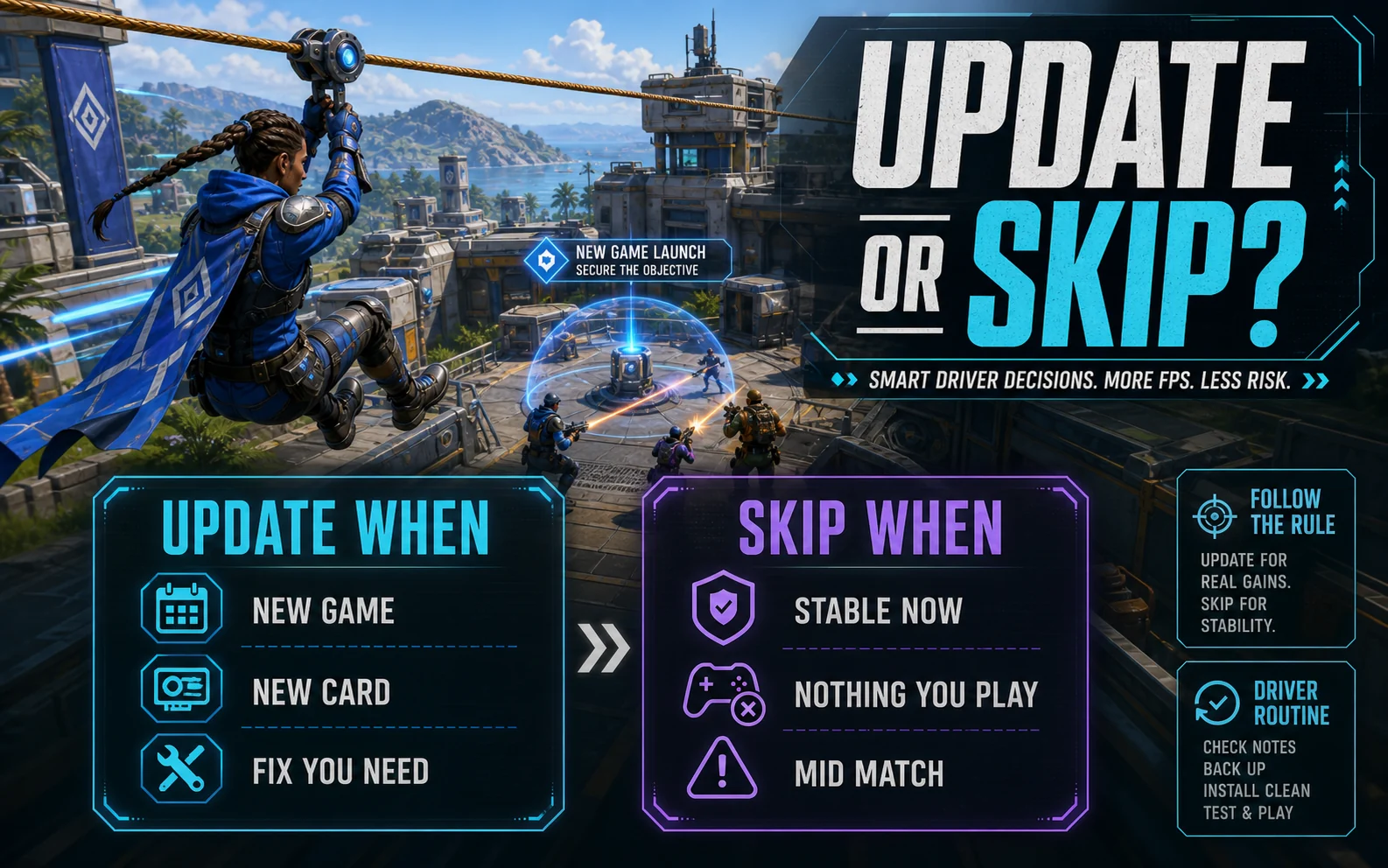
When updates actually add FPS (and when to skip)
Update when: a big game just launched (day-one drivers regularly carry double-digit gains for that title), you just installed a new card, or the notes name a fix for a game you play. Our per-game tuning guides — Fortnite, Cyberpunk, Monster Hunter Wilds — all assume current drivers.
Skip when: everything works and the release notes mention nothing you play. “Never update a working driver mid-tournament” is old esports wisdom that still holds. You can always roll back (Device Manager → Display adapters → Properties → Roll Back Driver), but not losing an evening to a bad release is better.
Set it and forget it
Sane defaults for a budget gaming PC: check monthly, update on game-day releases for titles you play, clean-install with DDU twice a year or whenever behavior gets strange. Combined with our Windows 11 gaming optimizations and free FPS boosters, it’s the maintenance routine that keeps a budget build feeling new.
FAQ
Do GPU driver updates increase FPS?
Sometimes significantly: day-one game drivers regularly deliver 5–15% in that specific title. Outside new-game optimizations, gains are small — updates are more about fixes and stability.
How do I completely reset my graphics driver?
Quick reset: Win+Ctrl+Shift+B restarts the display driver instantly (screen blinks, nothing closes). Full reset: uninstall with DDU in Safe Mode, then clean-install the latest driver — the fix for most persistent crashing and stutter.
Should I use the Nvidia App or download drivers manually?
Either works — the app is convenient; manual downloads from nvidia.com skip the extra software. What matters is the clean-install habit when problems appear, not the download route.