Getting the Monster Hunter Wilds settings right matters more here than in almost any other game on our list — Capcom’s RE Engine pushes both your GPU and your CPU hard, and the defaults leave a lot of frames behind. The good news: with the right cuts, every budget card we tune for holds a playable 60 at 1080p in the field. Here’s the map.
Why Wilds Runs Heavier Than It Looks
Wilds renders a huge, seamless world with weather systems and herds of monsters that all simulate at once. That last part is the catch: base camps and gathering hubs are CPU-bound, so no graphics setting fully fixes dips there. A six-core CPU like the Ryzen 5 5600 or i5-12400F is the practical floor. Out in the field, though, the GPU takes over — and that’s where the settings below earn their keep.
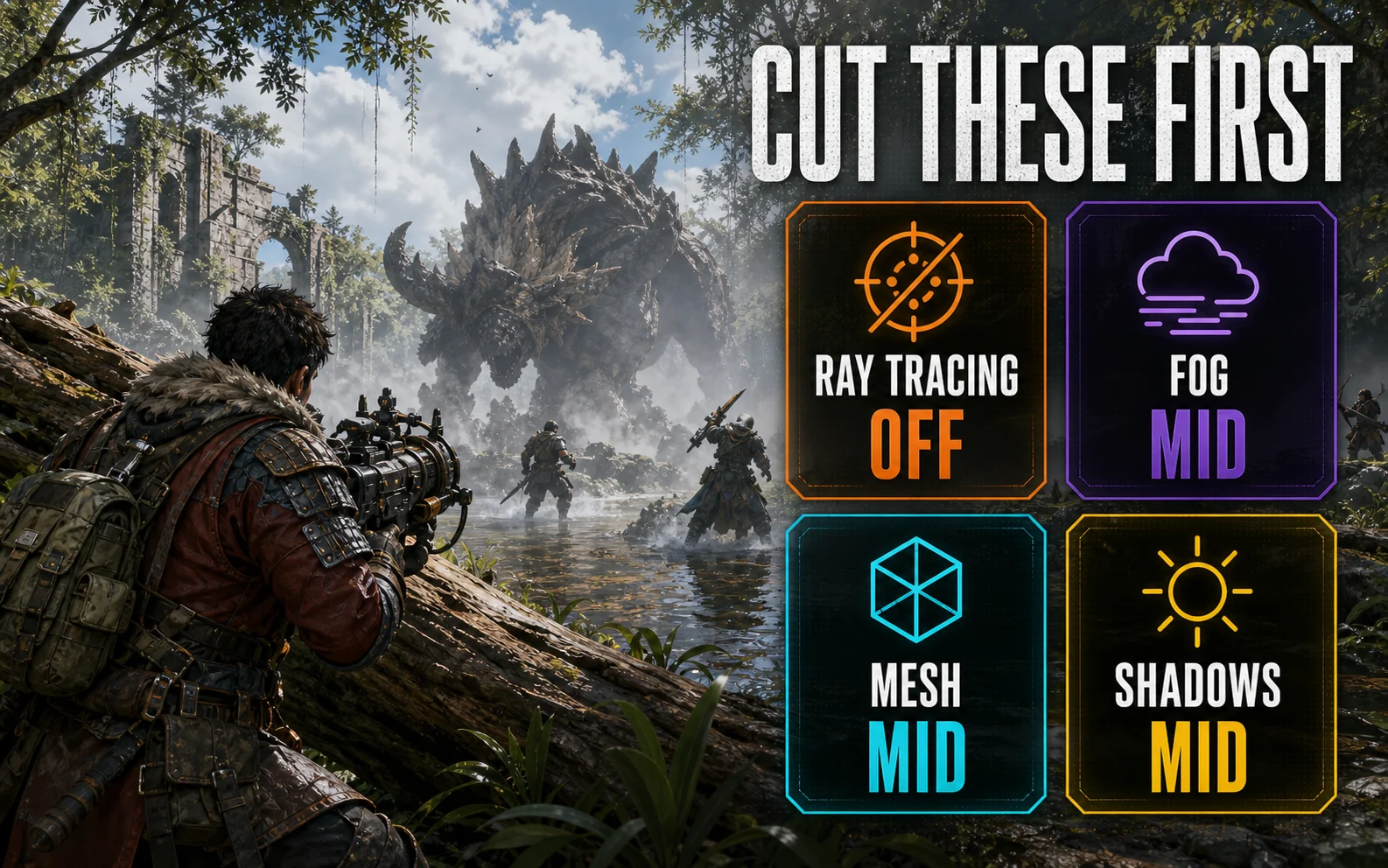
The Four Settings Doing Most of the Damage
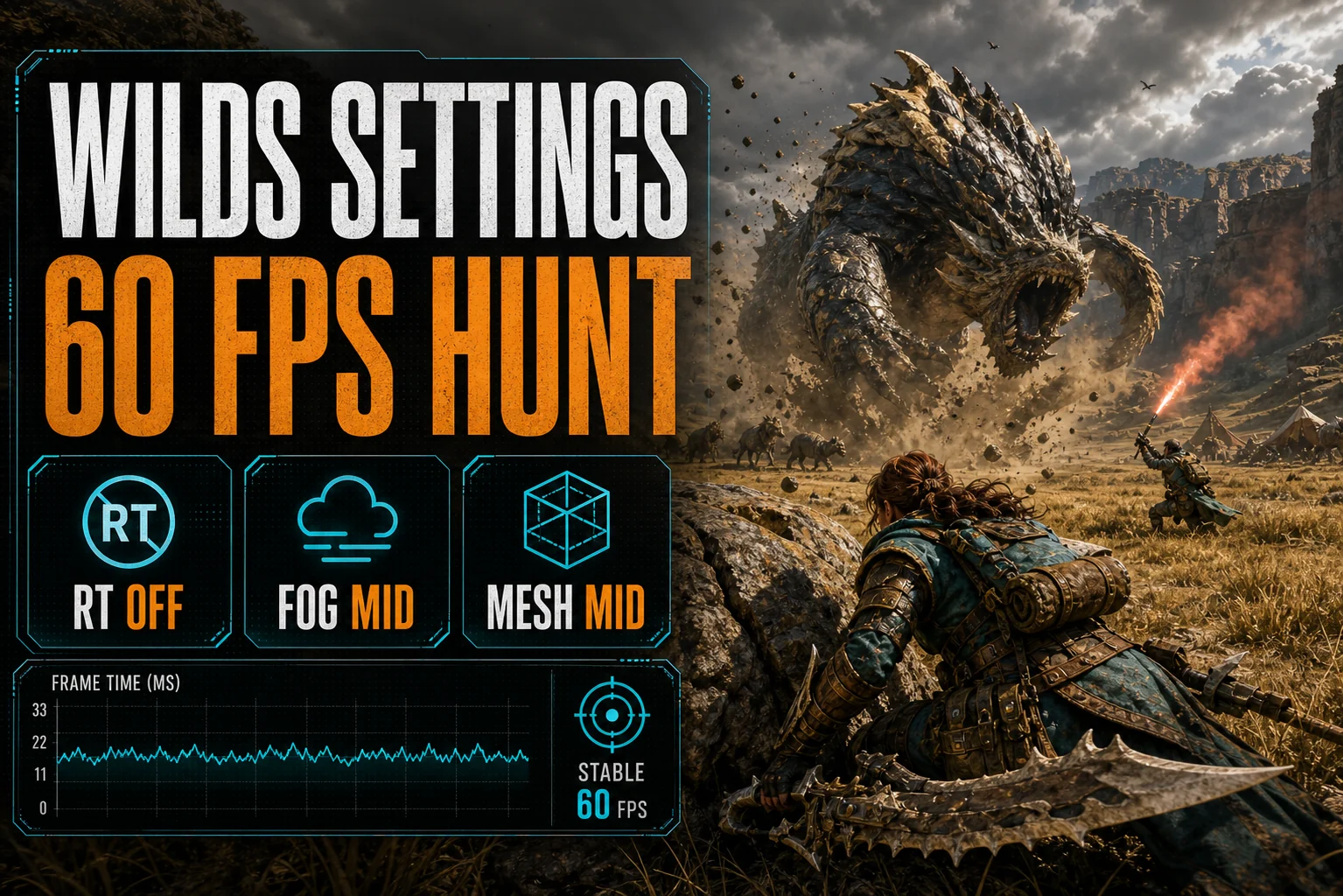
- Ray tracing — costs plenty, changes little in this game’s look. Off on every budget card.
- Volumetric fog — one of the priciest options in the menu. Mid is visually fine; the difference past that disappears in motion.
- Mesh quality — controls model geometry density. Mid saves real frames in monster-heavy fights.
- Shadow quality + distance — Mid/Mid. Wilds’ shadows scale expensive fast and you will not miss the top tier.
Dial It In Per Card
| GPU | Settings & Resolution | Upscaling | What to Expect |
|---|---|---|---|
| RTX 4060 (8GB) | 1080p, mostly High, fog/mesh Mid, RT Off | DLSS Quality + Frame Gen | ~60–80 FPS in the field, smooth |
| RTX 3060 (12GB) | 1080p, Mid-High mix, RT Off | DLSS Quality | ~50–65 FPS, stable |
| RX 7600 (8GB) | 1080p, mostly High, fog/mesh Mid, RT Off | FSR 3 Quality + Frame Gen | ~55–75 FPS |
| Arc B580 (12GB) | 1080p, Mid-High mix, RT Off | XeSS Quality | ~55–70 FPS |
Numbers are honest ballparks for open-field hunts — hub areas dip lower on every card because of the CPU load, and no settings menu changes that.
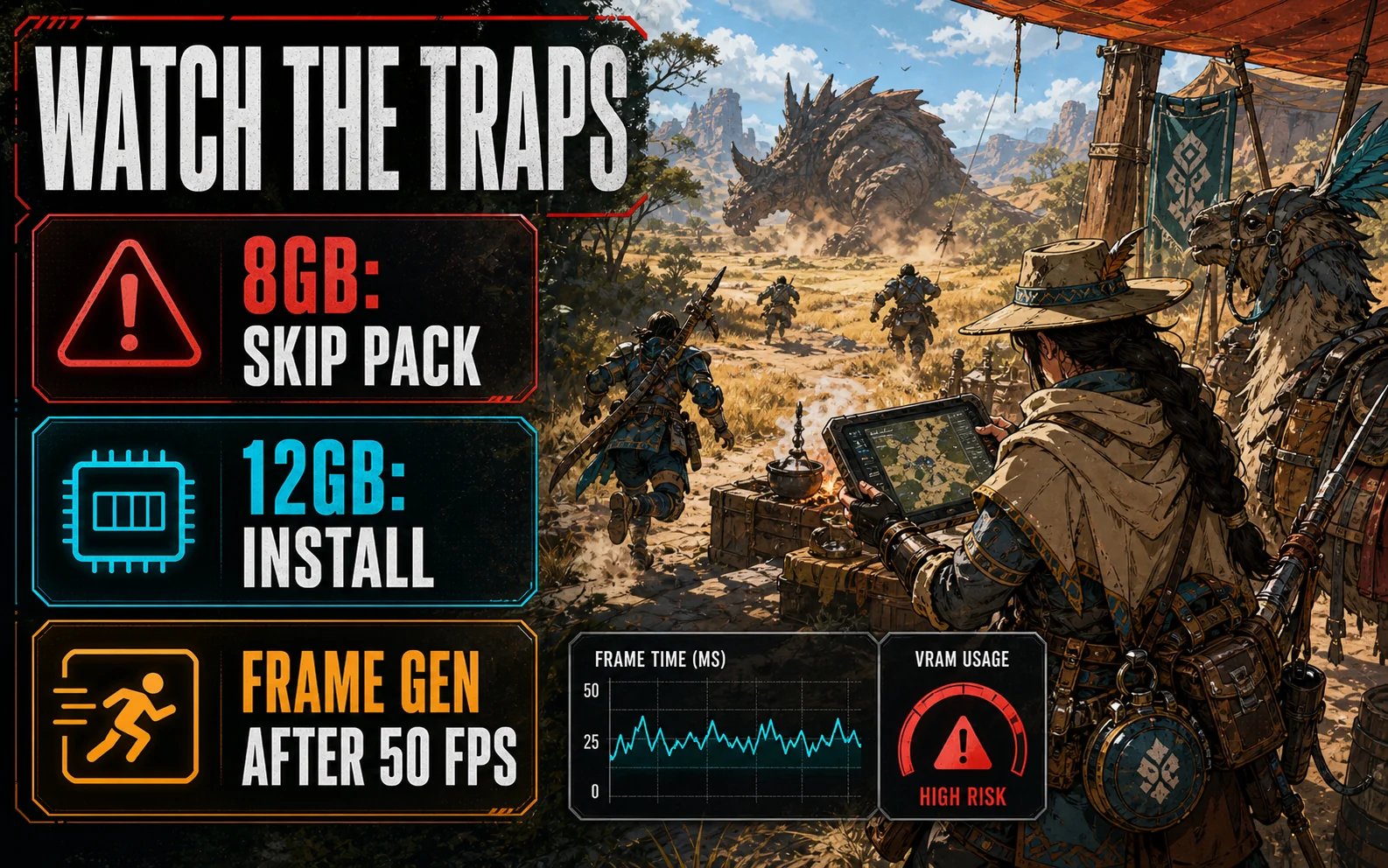
The High-Res Texture Pack Is an 8GB Trap
Capcom offers a free high-resolution texture pack as DLC, and on 8GB cards it’s a trap: it overflows VRAM at 1080p and turns clean frame delivery into hitching. Skip it on the RTX 4060 and RX 7600. On the 12GB cards — the RTX 3060 and Arc B580 — it’s one of the few places that big framebuffer pays off visibly, and it’s a real reason the 3060 still earns a slot in 2026.
One Rule for Frame Generation in Wilds
Frame Gen looks tempting because Wilds is heavy, but the rule from our budget GPU settings hub applies double here: it needs roughly 50–60 real FPS underneath, or monster attacks start feeling rubbery right when timing matters most. Get your base frame rate stable first, then switch it on as a bonus — never to drag 35 FPS up to “60.”
Pin This to Your Monitor
The full field-ready list, top to bottom of the Wilds menu:
- Upscaling: DLSS / FSR / XeSS on Quality
- Frame Generation: On only once your base FPS sits above ~50
- Ray Tracing: Off
- Texture Quality: High on 8GB cards, max on 12GB
- High-Res Texture Pack DLC: skip on 8GB, install on 12GB
- Volumetric Fog: Mid
- Mesh Quality: Mid
- Shadow Quality: Mid
- Shadow Distance: Mid
- Ambient Occlusion: Mid
- Motion Blur & Depth of Field: Off — free clarity in fights
- V-Sync: Off (cap frames in the driver instead if you get tearing)
Set that, hunt for ten minutes across one field zone and one camp visit, and only then fine-tune — one setting at a time.
Quick Answers
Can a budget GPU run Monster Hunter Wilds at 60 FPS? Yes — at 1080p with upscaling on Quality and the four settings above trimmed, every card in our table holds ~60 in the field.
Why does my FPS tank in base camp? That’s CPU load from NPC and monster simulation, not your graphics card. Lower settings won’t fix it; it’s normal.
Is the game VRAM-hungry? Only if you install the high-res texture pack. Without it, 8GB is fine at 1080p. Check the official requirements on Steam if you’re near the minimum.
Sharpen Your Blade, Not Your Shadows
Wilds rewards players who spend their performance budget where it counts. Fog, mesh and shadows to Mid, ray tracing off, upscaler on Quality — and the hunt runs the way Capcom’s trailers promised, even on a $200 card. For the rest of your library, the per-game guides live here.