Search for a free FPS booster and you’ll mostly find adware, snake oil, and apps that do nothing measurable on a modern PC. A surprising number are worse than useless, hijacking your browser, bundling junk, or quietly mining crypto in the background. The phrase “FPS booster” has become one of the most reliable bait words in shady software marketing.
But here’s the honest part: there are a handful of genuinely useful, genuinely free tools that can squeeze a few more frames out of a low-end or thermally limited PC. They won’t turn a GTX 1050 into an RTX 4070. They will, in specific situations, help. This is the short list that’s actually worth your time, plus the long list of what to avoid.
The Snake Oil Problem
Before we get to the legit stuff, let’s name names. The following categories deliver almost zero real-world FPS gain and frequently make your system worse:
- Razer Cortex Game Booster — once mildly useful in the Windows 7 era. In 2026, Windows already suspends background processes effectively when a fullscreen game has focus. Cortex mostly just turns off a few services and then turns them back on. Benchmarks consistently show single-digit-percent differences at best, and often none.
- Generic “PC Optimizer” downloads — Advanced SystemCare, IObit, MyCleanPC, anything you see in a YouTube preroll ad. These bundle browser extensions, change your search provider, and nag you to pay for a “Pro” version. They do not boost FPS.
- Registry cleaners — useless on modern Windows. The registry isn’t a bottleneck. Removing entries can break things.
- RAM cleaners — actively counterproductive. Windows keeps RAM full on purpose (it’s called the standby list, and it speeds things up). Forcing it to clear means your system has to reload data from disk later. The exception is ISLC, which I’ll cover below — it’s a targeted fix for a specific stutter issue, not a generic “free up RAM” tool.
- Anything that costs $30+ and claims “+50% FPS” — fake. No software does this. If it could, AMD and Nvidia would be selling it for $200.
Rule of thumb: if a tool advertises itself primarily as a free fps booster for pc and shows you a fake scanning animation with red bars, close the tab.
Free FPS Booster Tools That Actually Work
These are the ones I’d install on a friend’s struggling rig. All free (with one paid exception clearly labeled), all from reputable sources.
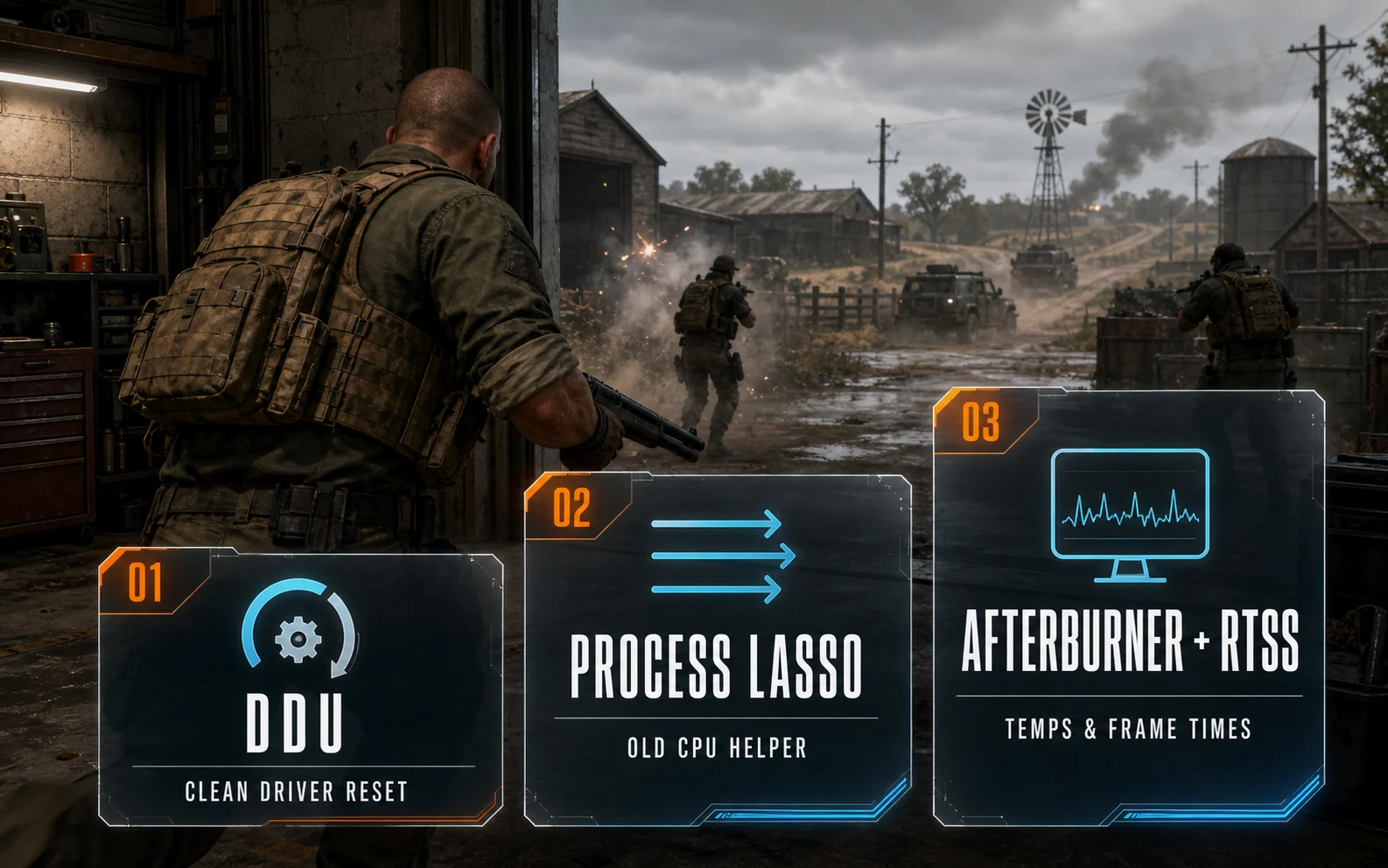
DDU (Display Driver Uninstaller)
Not technically a “booster” — DDU is a clean uninstaller for GPU drivers. Why it matters: if your PC has been through several Windows updates, GPU swaps, or buggy driver installs, you may be running on a corrupted driver state that’s quietly hurting performance. Boot into safe mode, run DDU, reinstall the latest driver from AMD or Nvidia directly. Real fix for stuttering and crashes that no amount of “optimization software” will solve.
Source: download from guru3d.com, which is the official distribution site. Don’t grab it from random mirrors.
Process Lasso (Free Tier)
This is one of the few tools where the impact is measurable on the right hardware. Process Lasso lets you set CPU affinity and priority per-game, automatically. On older quad-core CPUs (think i5-6500, Ryzen 3 1200, anything with 4 cores and no SMT), forcing the game to a high priority and parking background processes on specific cores can genuinely smooth out frametimes and lift averages by a few percent.
On a modern 8-core or 12-core chip with plenty of headroom, you’ll probably see no difference. This is a tool for people running 6+ year old CPUs.
MSI Afterburner
Free, made by MSI, works on any GPU brand. Two real uses:
- Monitoring overlay — see your actual GPU temp, clock speeds, and frame times in-game. Once you can see thermal throttling, you can fix it.
- Slight undervolting — on a thermally limited laptop or a small-form-factor desktop, dropping voltage by 50-75 mV often lets the GPU sustain higher boost clocks for longer. On a heavily throttled mobile GPU, this can mean a 5-10% FPS improvement in long sessions. On a desktop that’s already running cool, the gain is closer to zero.
Download from msi.com directly. The bundled RTSS (below) installs alongside it.
RTSS (RivaTuner Statistics Server)
Comes with Afterburner. Two killer features: a precise frame limiter (better than the in-game one in most cases) and scanline sync, which can give you tear-free output without the input lag of regular V-Sync. If your game stutters because frametimes are inconsistent, capping FPS slightly below your monitor’s refresh rate often produces a smoother experience than letting the GPU run uncapped. It’s not “more FPS,” it’s “more even FPS,” and that’s frequently what you actually want.
ISLC (Intelligent Standby List Cleaner)
Niche but valuable. On systems with 8GB of RAM or less, you can run into a quirk where Windows’ standby list fills up and causes periodic stutters in long gaming sessions. ISLC clears the standby list only when it crosses a threshold you set. Unlike generic RAM cleaners, it doesn’t constantly thrash your memory — it acts surgically when needed.
If you have 16GB or more, you almost certainly don’t need this. If you have 8GB and notice stutters that get worse the longer you play, it can help noticeably.
Nvidia App and AMD Adrenalin
The built-in driver software from both vendors has gotten genuinely good. Free, official, no bundled junk. Worth turning on:
- Resizable BAR — small but real gains on newer cards in certain titles.
- Nvidia Reflex / AMD Anti-Lag — lower input latency, not more FPS, but it feels faster.
- Radeon Image Sharpening / Nvidia Image Scaling — render at a lower resolution and upscale with sharpening. Real FPS gain at a modest visual cost. The best free fps boost software you already have installed.
Lossless Scaling (Paid, $7)
Not free — being upfront about it. Lossless Scaling is a $7 app on Steam that adds frame generation to games that don’t natively support DLSS 3 or FSR 3. On a GPU without modern frame-gen support (anything older than RTX 40-series or RX 7000-series), it can effectively double your perceived smoothness in single-player games. There’s added latency and occasional visual artifacts, so it’s not magic. But for the price of a sandwich, it’s the only “FPS booster” tool I’d actually recommend paying for. Don’t let anyone bundle it as part of a $40 “ultimate optimizer” package — buy it directly on Steam.
When These Tools Actually Help
Be realistic about expectations. Software optimization gives real gains in specific scenarios:
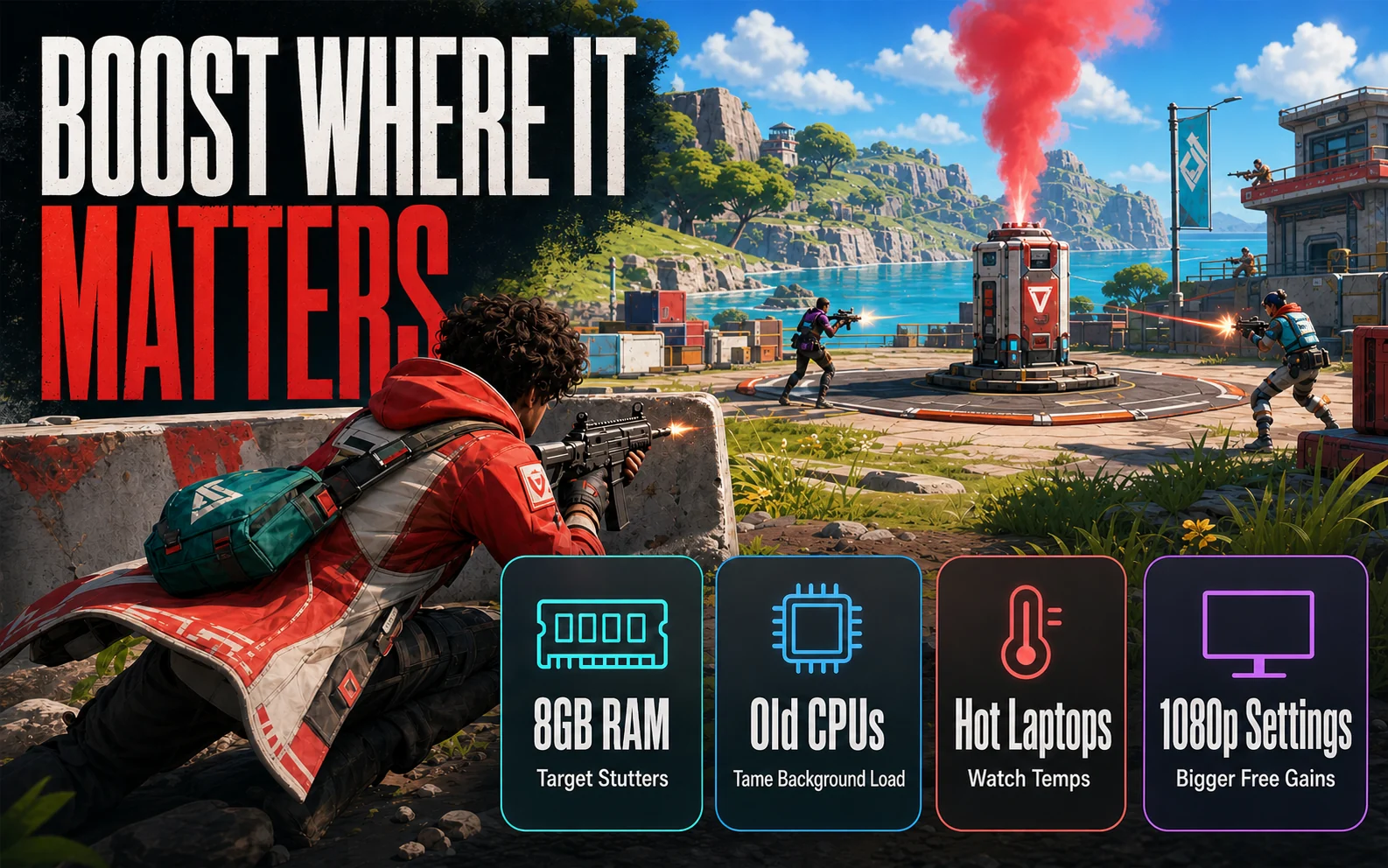
- Low-RAM systems (8GB or less) — ISLC and closing background apps actually matter.
- Thermally throttled laptops — Afterburner undervolting plus repasting the heatsink can recover serious lost performance.
- Old quad-core CPUs — Process Lasso, plus making sure background telemetry isn’t hammering one core.
- PCs with messed-up driver state — DDU plus a clean reinstall fixes more than people realize.
- Older GPUs with no DLSS/FSR support — driver-level upscaling (RIS, NIS) gets you real frames.
And when they don’t help:
- A modern 16GB+ system with a healthy install and adequate cooling. There’s nothing to “boost.” Buy a better GPU or lower your settings.
- Games that are CPU-bottlenecked because of poor optimization on the developer’s end. No tool fixes Star Citizen.
One More Thing on Settings
The biggest free FPS gain on a low-end PC isn’t from any app — it’s from in-game settings. Turn shadows from Ultra to Medium. Drop volumetric fog. Disable motion blur. Cap FPS to your monitor’s refresh rate. Run at 1080p, not 1440p. These are free, instant, and bigger than anything any “booster” will give you. Combine those settings with one or two of the real tools above, and you’ll get pretty close to whatever your hardware is actually capable of.
That’s the honest version. No fake scan animations, no “+200% FPS” promises, no $50 subscriptions. Just the small set of free tools that respect your time and your hardware.
Further Reading
- MSI Afterburner official download
- Process Lasso official site (free + paid tiers)
- RivaTuner Statistics Server (RTSS) download